
Notifications
Notifications
Raisetalk notifications allow you to receive automatic email alerts when specific criteria are detected during conversation analysis. Rather than reviewing your reports after the fact, you are alerted in real time to take immediate action.
Accessing the configuration
Notifications are configured from the Automations menu in your Raisetalk workspace. Any user with the manage_automations permission can create and manage notifications.
Click Create an automation then select the Notification type to access the configuration form.
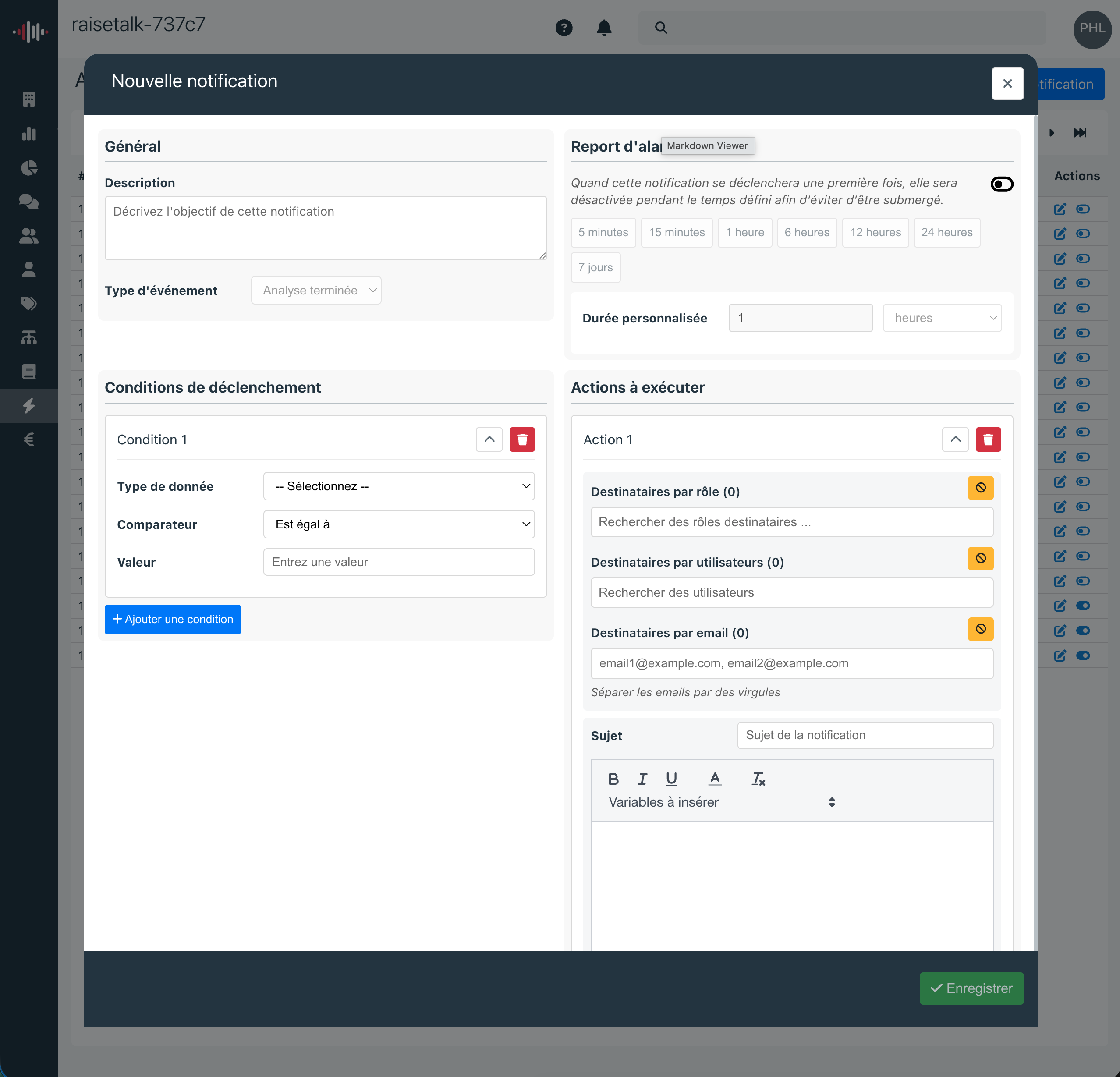
Configuring a notification
1. Name and describe the alert
Give your notification a clear name so you can easily find it in your automations list. For example: "Churn alert - retention team" or "Script non-compliance escalation".
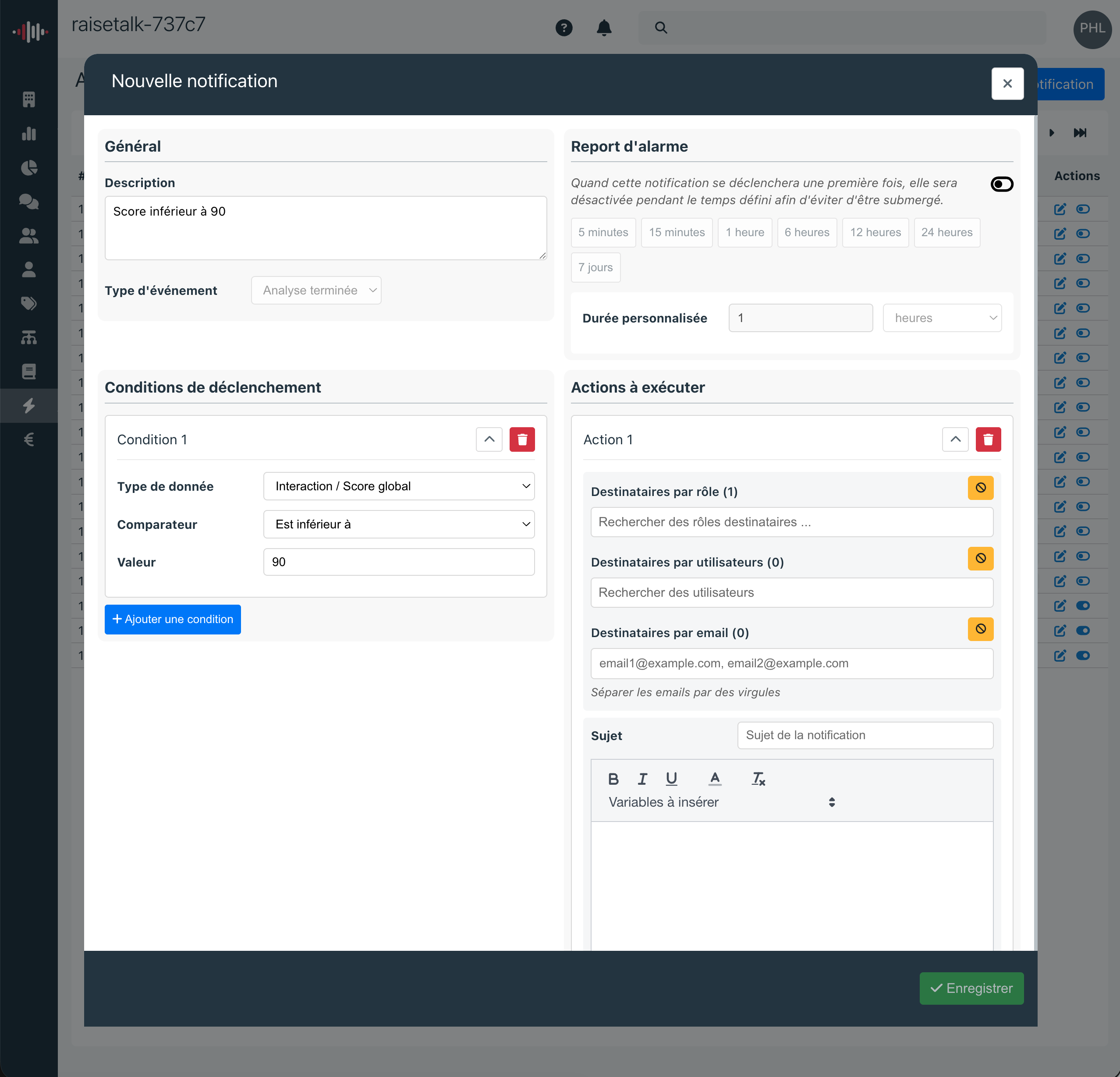
2. Define trigger conditions
Select one or more criteria from your analysis grid. The notification will be triggered when these criteria are flagged (or not flagged, depending on your configuration) during a conversation evaluation.
You can combine multiple conditions for highly targeted alerts. For example: trigger an alert only when the "Churn risk" criterion and the "Expressed dissatisfaction" criterion are both flagged.
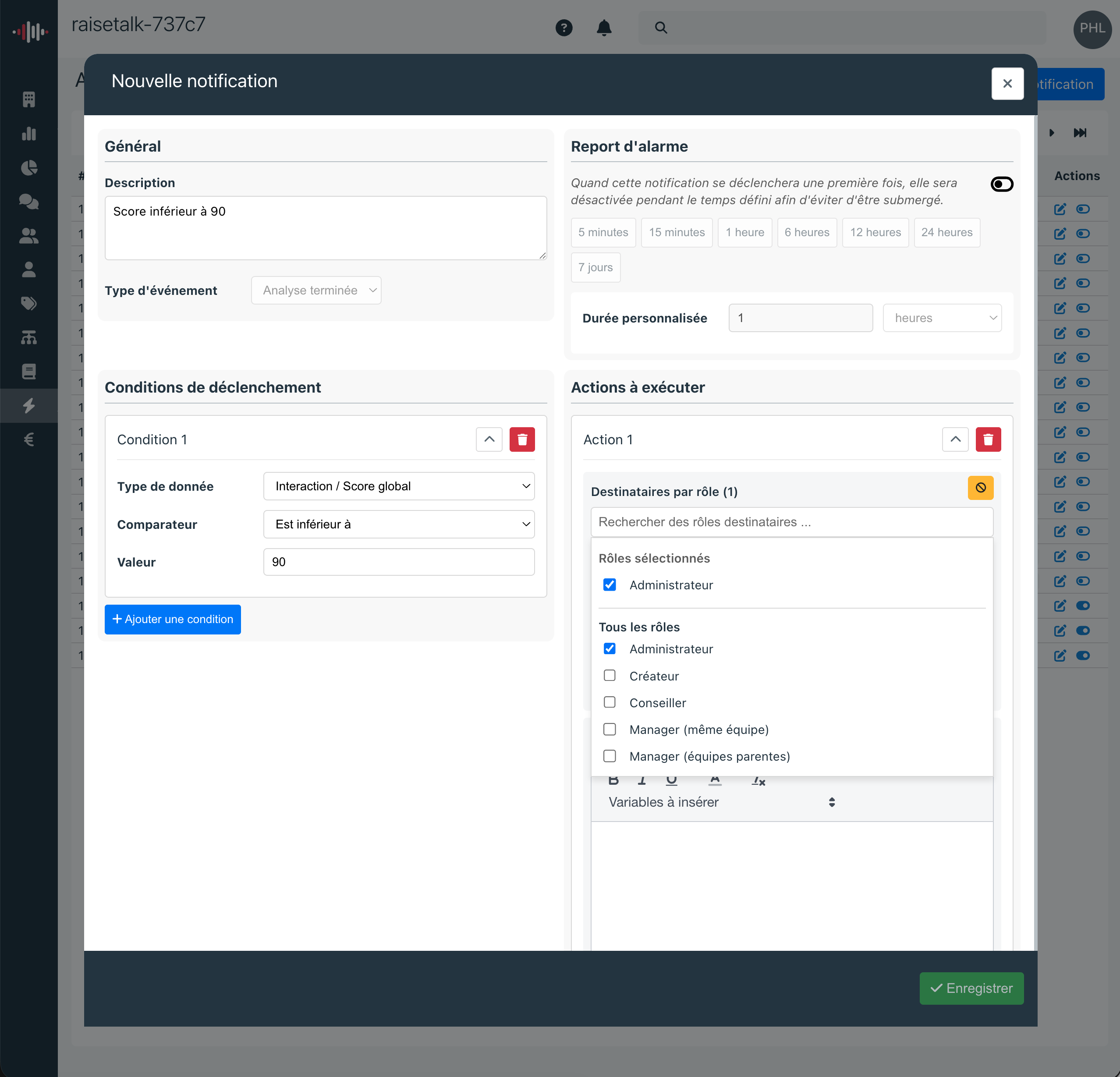
3. Choose recipients
Three options are available to define who will receive the notification:
- By role: automatically alert the advisor's supervisor, their N+2, or any other role defined in your organization. Recipients are dynamically determined based on the team hierarchy.
- By user: designate specific Raisetalk platform users who will systematically receive the alert.
- By email: enter free-form email addresses to send alerts to people outside the platform. Useful for involving teams that do not have access to Raisetalk.
These three modes can be combined: for example, you can alert the direct supervisor (by role) and a specific quality manager (by user) at the same time.
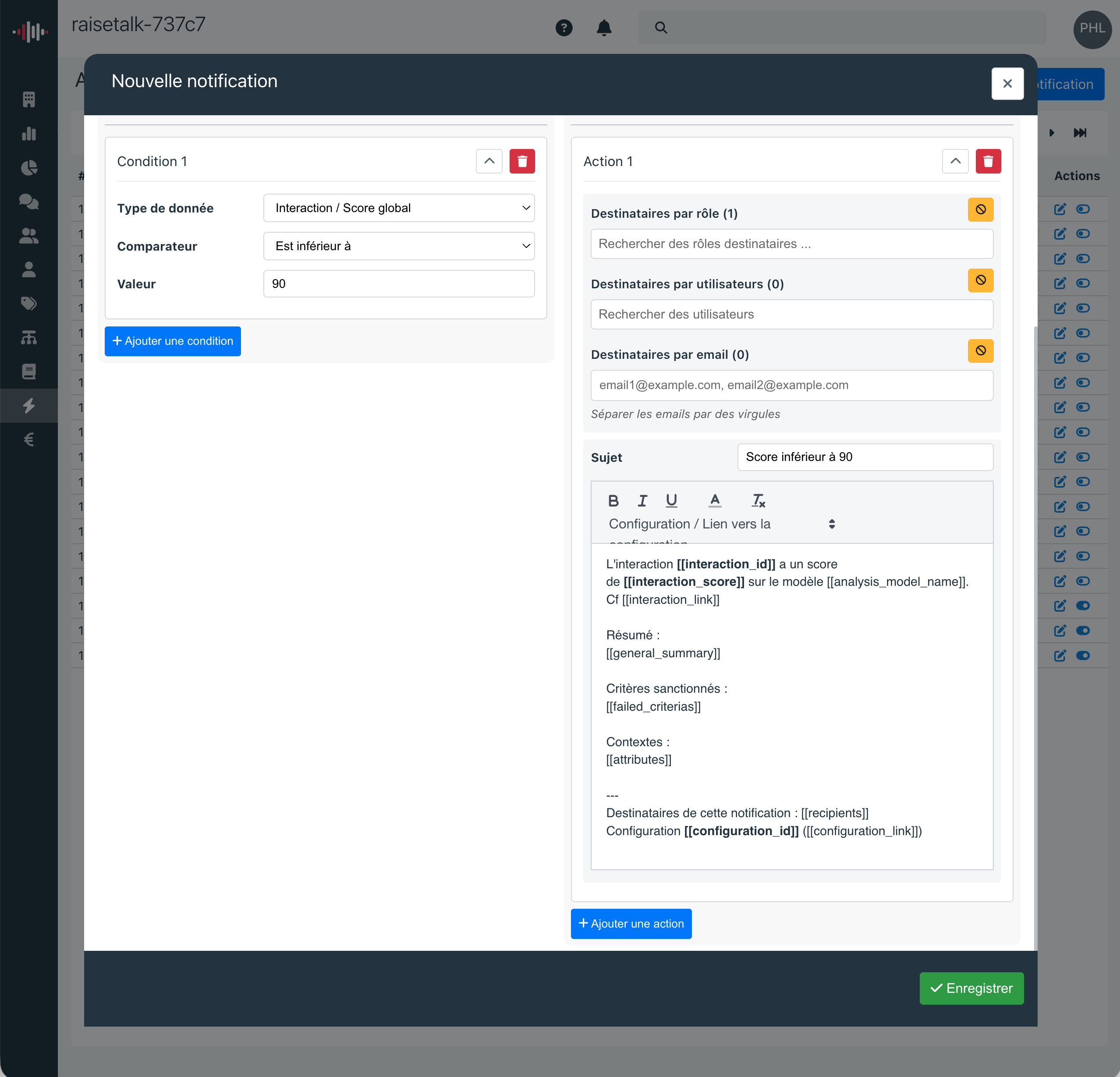
4. Customize the email template
Write the subject and body of the email using mail merge variables. These variables will be automatically replaced with the conversation information at the time of sending.
Examples of available variables:
| Variable | Description |
|---|---|
[[conversation_id]] | Unique conversation identifier |
[[conversation_date]] | Conversation date |
[[advisor_name]] | Advisor name |
[[advisor_email]] | Advisor email |
[[team_name]] | Team name |
[[conversation_link]] | Direct link to the conversation in Raisetalk |
[[score]] | Overall evaluation score |
The complete list of available variables is accessible directly in the configuration interface, when editing the email template.
This allows you to create personalized and immediately actionable emails, containing all the information needed to handle the situation.
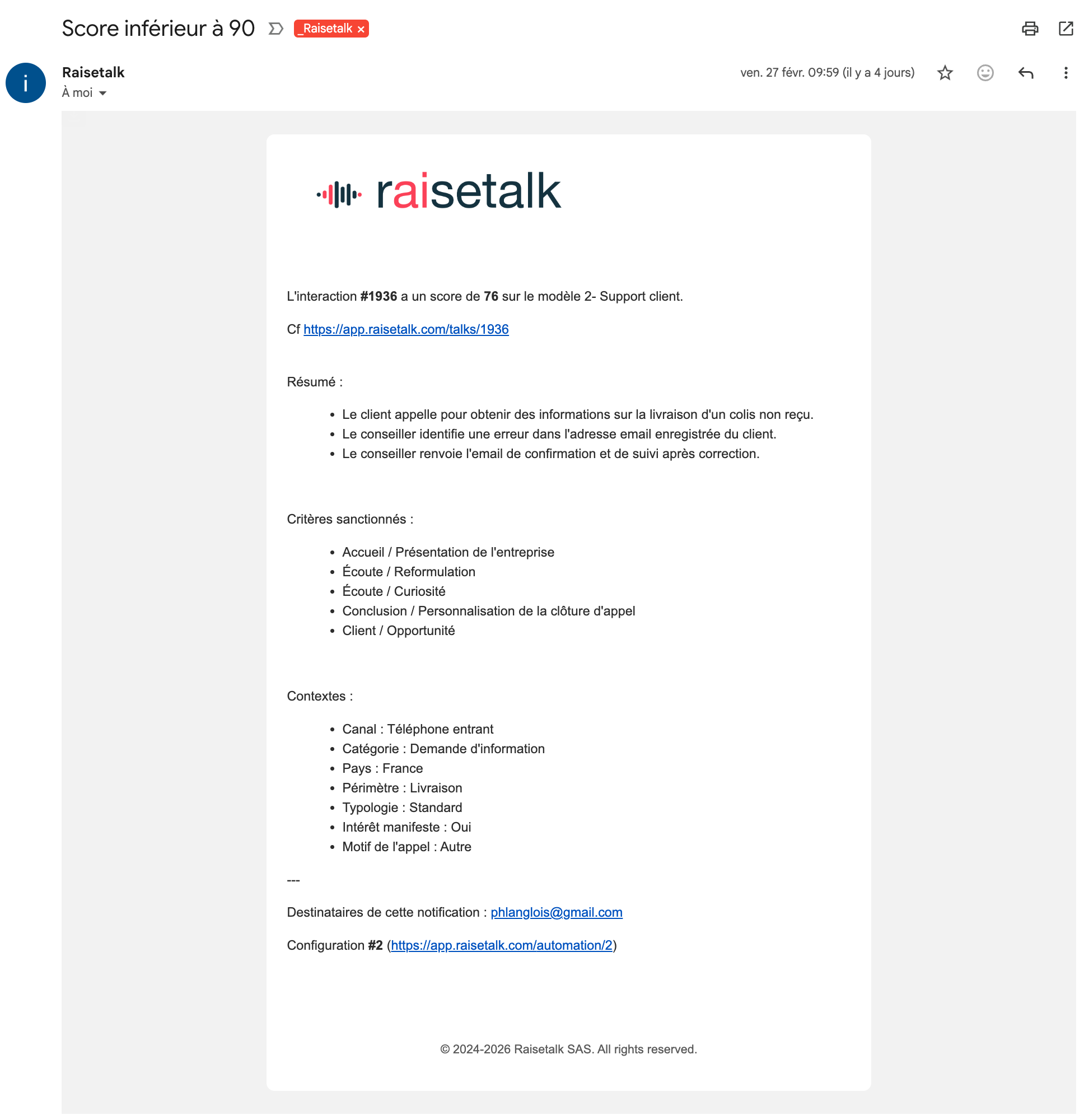
Example of a received notification
When the configured conditions are met during a conversation evaluation, recipients receive an email containing personalized information based on the defined template. The email includes a direct link to the conversation in Raisetalk for immediate access.
Use cases
- Churn prevention: alert the retention team as soon as a customer expresses an intention to leave, to organize a retention callback within minutes.
- Quality escalation: notify the supervisor when an advisor fails to comply with a critical script element (legal disclaimer, identity verification...).
- Sales opportunities: inform the sales team when a customer shows interest in a complementary product detected during the conversation.
- Irritant detection: escalate recurring product or process issues to the relevant teams in real time for quick resolution.