
Reporting
General principle
The Reporting module of Raisetalk turns your conversation evaluations into analysis dashboards: average scores, trends over time, strengths and areas for improvement by team, user or criterion.
While notifications alert you in real time about a specific conversation, reporting gives you the big picture: it aggregates all the evaluations over a period so you can manage quality over the long run.
Reporting is available from the Understand menu of your Raisetalk workspace, for any user with the manage_users or view_users right (see the Rights and data visibility section at the bottom of this page).

Available reports
Five reports are available, each answering a different question:
| Report | Question it answers |
|---|---|
| Team report | How are one or more teams doing over the period? |
| User report | What is an advisor's detailed performance? |
| Attribute report | How do the results break down by a label (call reason, campaign, channel...)? |
| Average evolution per user(s) | How does each advisor's average score evolve over time? |
| Acquisition rate evolution per question | Is a given criterion met more and more consistently over time? |
Global reports
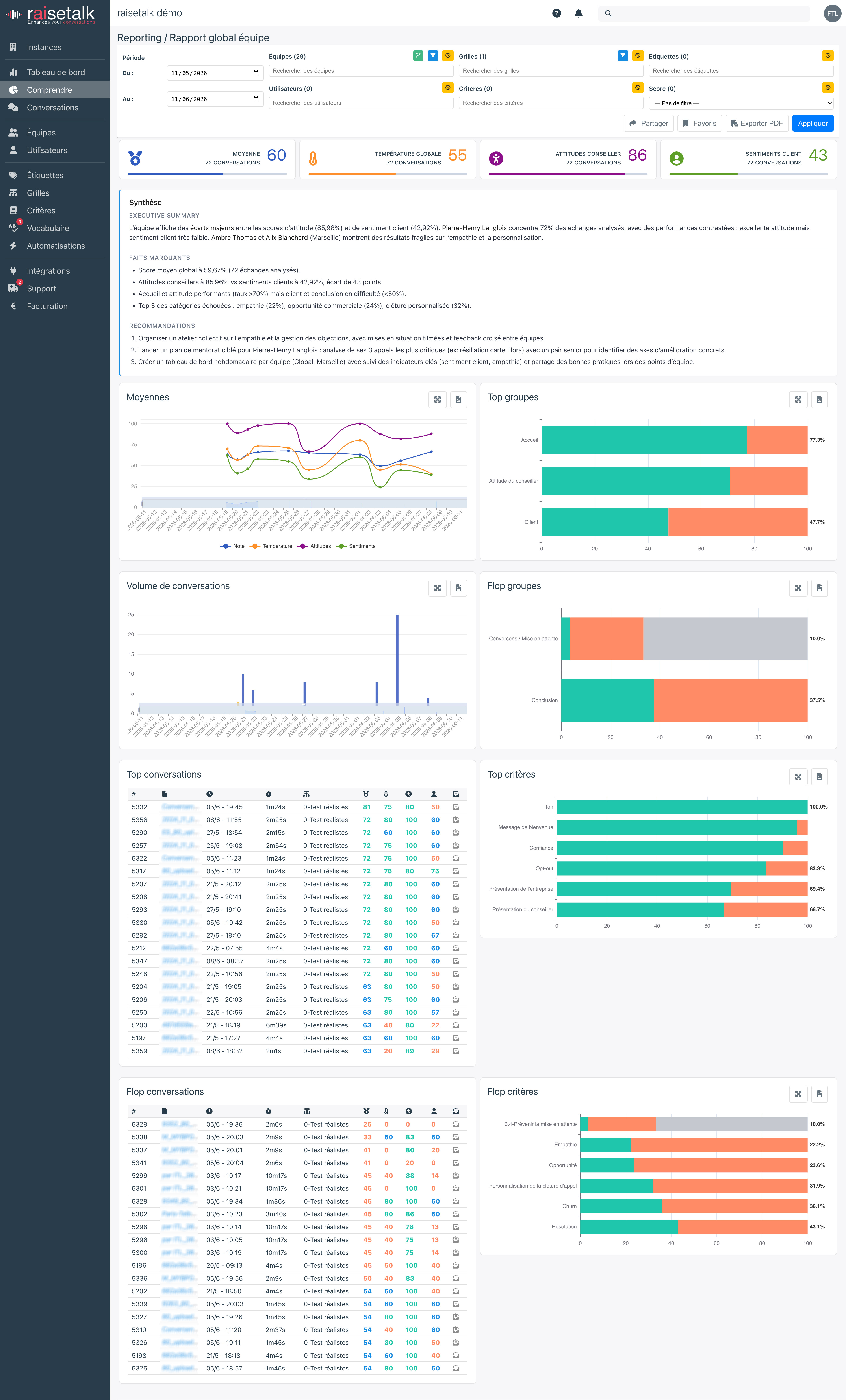
The three global reports (team, user, attribute) follow the same logic: a complete view made of key indicators and charts.
At the top of the report, four indicators summarise the period:
- Average: the average score of the evaluated conversations, on a scale from 0 to 100 (see Scores and scoring for details on how it is calculated)
- Overall intensity: the overall feeling emerging from the conversations
- Advisor's attitude: the dominant attitudes detected on the advisor's side
- Client's sentiments: the dominant sentiments detected on the client's side
Then come the analysis charts and tables, including:
- Averages and Evolution: the score trend over the period
- Top groups / Bottom groups: the best and least mastered groups of criteria
- Top criteria / Bottom criteria: the individual criteria most and least often met
- Top conversations / Bottom conversations: the highest and lowest rated conversations, with direct access to each of them
- Conversation volume: the number of evaluated conversations per user
- Volume by attribute value: the distribution of conversations across the values of a label (Attribute report)
Evolution reports
The two evolution reports display curves over time:
- Average evolution per user(s): one curve per selected advisor — ideal for tracking the effect of a coaching initiative or comparing the progress of several team members.
- Acquisition rate evolution per question: for each selected criterion, the share of conversations where it is met, week after week. The go-to tool to check that a training effort is paying off.

Filtering the data
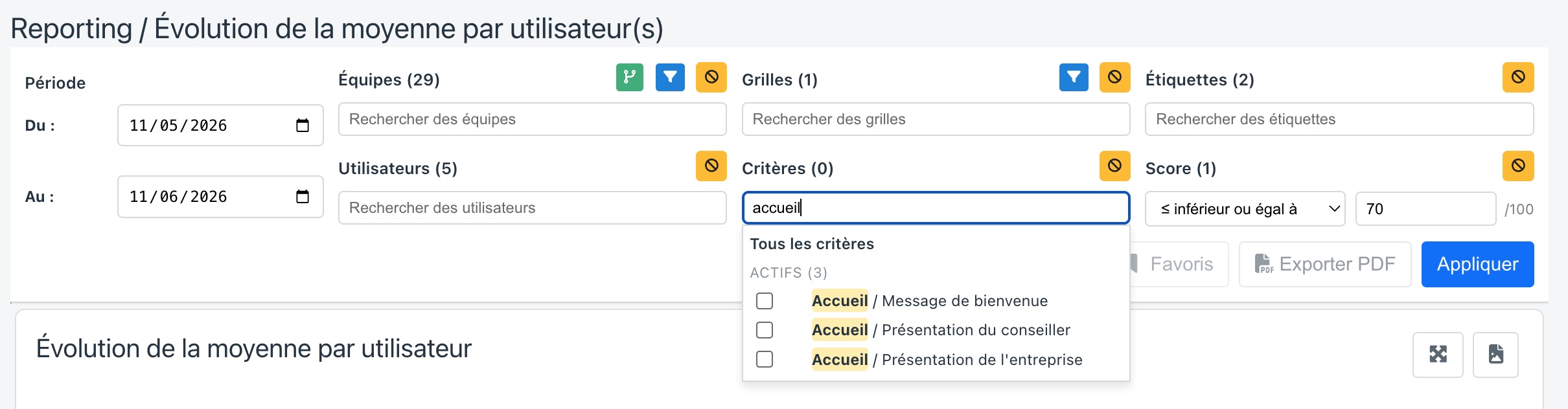
Each report comes with a Filters panel that lets you fine-tune the analysed scope. Filters are applied with the Apply button.
- Period: the start and end dates of the analysis.
- Teams: one or several teams. Cascade mode automatically includes all the sub-levels of a selected team.
- Users: by default, users are automatically selected based on the chosen teams; you can also pick specific users.
- Labels and label values: to narrow the analysis down to one or several call reasons, campaigns, channels... based on the labels defined in your organisation.
- Grids: one or several analysis grids.
- Criteria: by default, criteria follow the chosen grids; you can also target specific criteria. For each selected criterion, an icon additionally lets you filter by acquisition status:
- funnel icon: simple filter, all the conversations where the criterion is evaluated;
- green check icon: only the conversations where the criterion is acquired;
- red cross icon: only the conversations where the criterion is not acquired;
- crossed-out circle icon: only the conversations where the criterion is marked N/A.
- Score: to keep only the conversations above, below, equal to or between certain scores.
Sharing and saving a view
Once your filters are in place, two options save you from setting them up again:
- Share: copies to the clipboard a URL containing the report and all its filters. Send it to a colleague: they will open exactly the same view (with their own visibility rights). If a filtered element has been deleted in the meantime, Raisetalk lets you know when the page opens.
- Favorites: saves the current view so you can reopen it in one click on your next visits.
Exporting a report as PDF
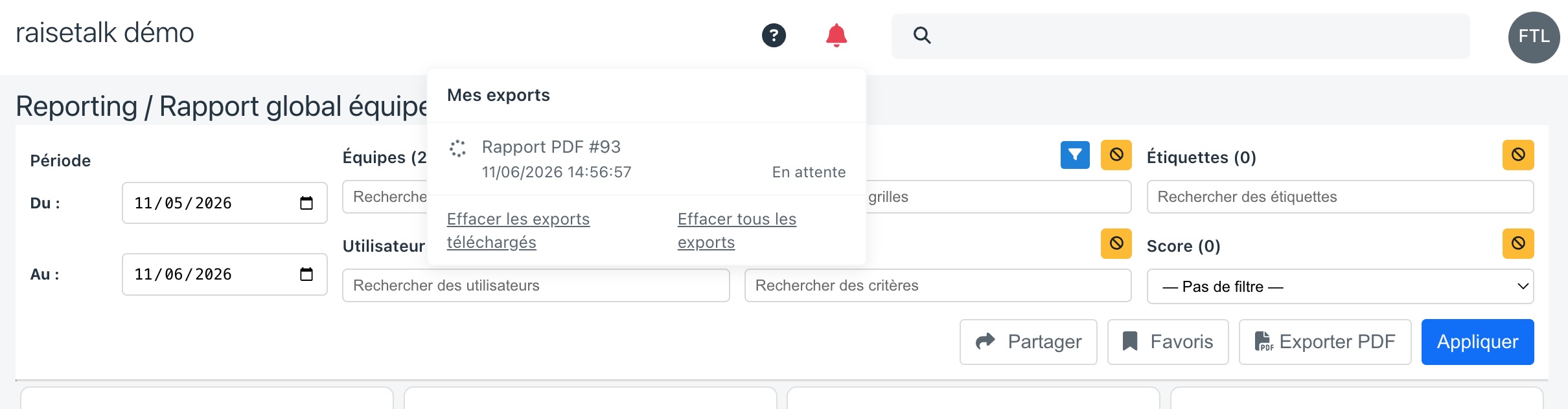
The Export PDF button generates a PDF version of the displayed report, with the current filters. Generation happens in the background:
- Click Export PDF: the message "PDF export started, available soon in your exports" confirms the request. You can keep browsing Raisetalk while the report is being generated.
- Track the progress in My exports (statuses: Queued, Running, Ready). A red badge appears on the bell as soon as the report is ready.
- Once the status reaches Ready, download the document. The download link remains valid for 7 days, after which the export switches to the Expired status.
The PDF mirrors the report layout: cover page, key indicators, charts and tables — ready to be shared in a meeting or archived.
The AI summary
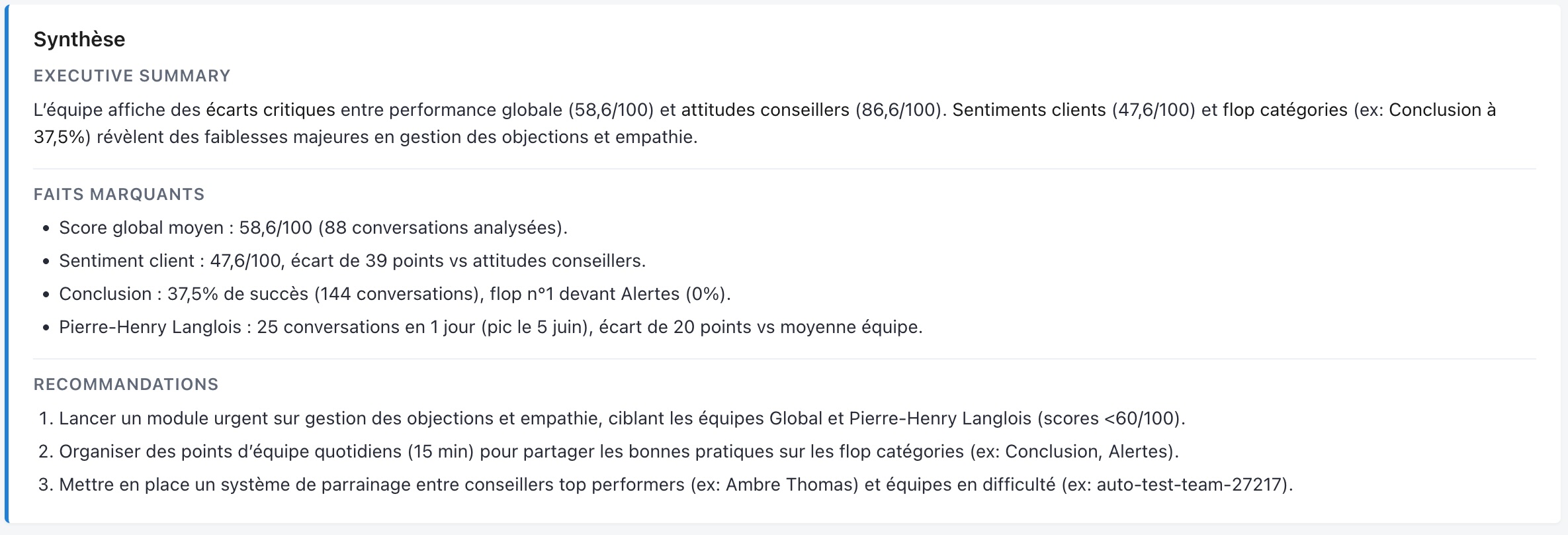
On global reports, the Summary tile produces a written reading of the filtered data, in three blocks:
- Executive summary: a few sentences summarising the situation over the period
- Key facts: the salient points found in the figures
- Recommendations: concrete actions to keep improving
The summary is generated on demand, in your interface language, and reflects exactly the scope of your filters: change the filters and run it again to get a fresh reading.
Two conditions must be met to benefit from it:
- having the
reporting_ai_summaryright (granted to the Administrator role by default); - the feature must be enabled for your organisation. If the message "Summary not configured for this instance" appears, get in touch with your Raisetalk representative.
Rights and data visibility
Access to reporting follows the roles and rights of your organisation:
- The
manage_usersorview_usersrights grant access to the Reporting module (Administrator, Leader and Viewer roles by default). - The data scope follows the usual visibility rules: a user sees the data of their teams and of the teams below; a Viewer only sees their own data, whatever the selected filters.
- The
reporting_ai_summaryright controls access to the AI summary.
As a result, the same shared report link can show different data depending on the rights of the person opening it: everyone only sees what their scope allows.