
Support
Built-in support, open to everyone
Raisetalk ships with its own support channel: no third-party tool, no separate account to create, no email address to remember. Every user of the platform, whatever their role, can raise a request directly from their workspace, via the Support menu.
Each request is tracked end to end: you talk with the Raisetalk team in a discussion thread, you are notified by email at every reply and status change, and the whole history stays available in one place. A bug, a usage question, an improvement idea or a configuration need — everything goes through the same channel, without friction.

Creating a request
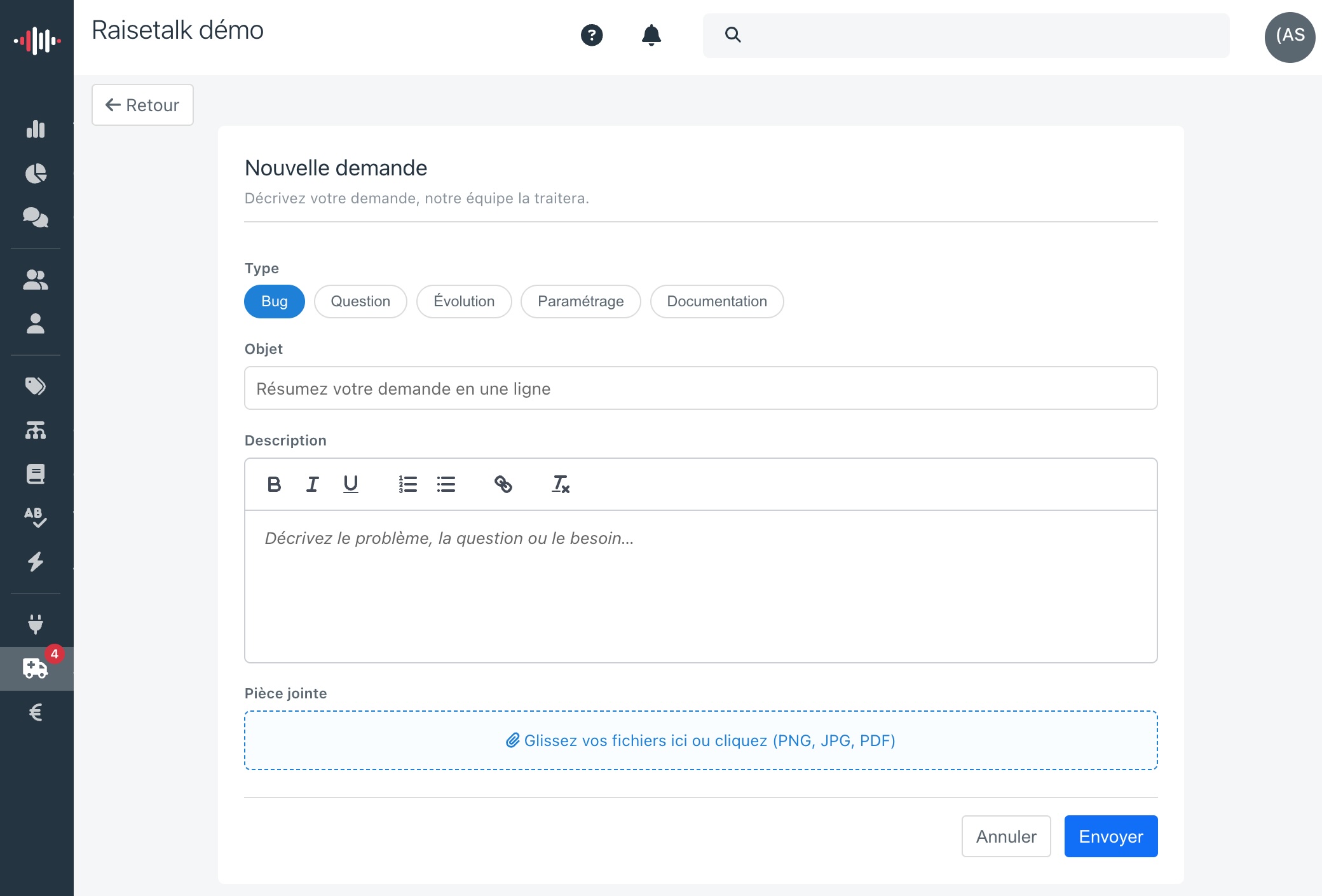
From the Support menu, the My requests page opens. Click New request and fill in the form:
- Type: the nature of your request, for faster handling.
- Subject: summarise your request in one line.
- Description: describe the problem, the question or the need. The editor supports formatting (bold, lists, links...).
- Attachment: drop your files here or click to select them (PNG, JPG, PDF).
| Type | When to use it |
|---|---|
| Bug | An abnormal behaviour or an error in the application |
| Question | A question about how Raisetalk works or how to use it |
| Evolution | An improvement suggestion or a desired new feature |
| Setting | A configuration request (grid, criteria, integration...) |
| Documentation | A clarification or an addition wanted in the documentation |
On submission, the message "Request sent, the team has been notified." confirms the creation and you receive a confirmation email. No need to describe your technical environment: the page you created the request from and the application version are attached automatically.
Tracking your requests
The My requests page lists your requests with their status, priority, last activity and elapsed time. Requests holding something new for you appear in bold, and the Support menu shows a badge with their count — you cannot miss a reply.
| Status | Meaning |
|---|---|
| New | The request has just been created and awaits acknowledgement |
| Acknowledged | The team has seen your request |
| In progress | The request is being handled |
| Waiting for you | An answer or a clarification from you is expected |
| Resolved | The request has been handled |
| Rejected | The request was not retained, the reason is explained in the thread |
The priority (Low, Normal, High, Critical) is set by the support team according to the impact.
Filters let you find a request by type, status or priority, with a text search. By default, resolved requests are hidden; untick Hide resolved to display them.
Talking with the support team
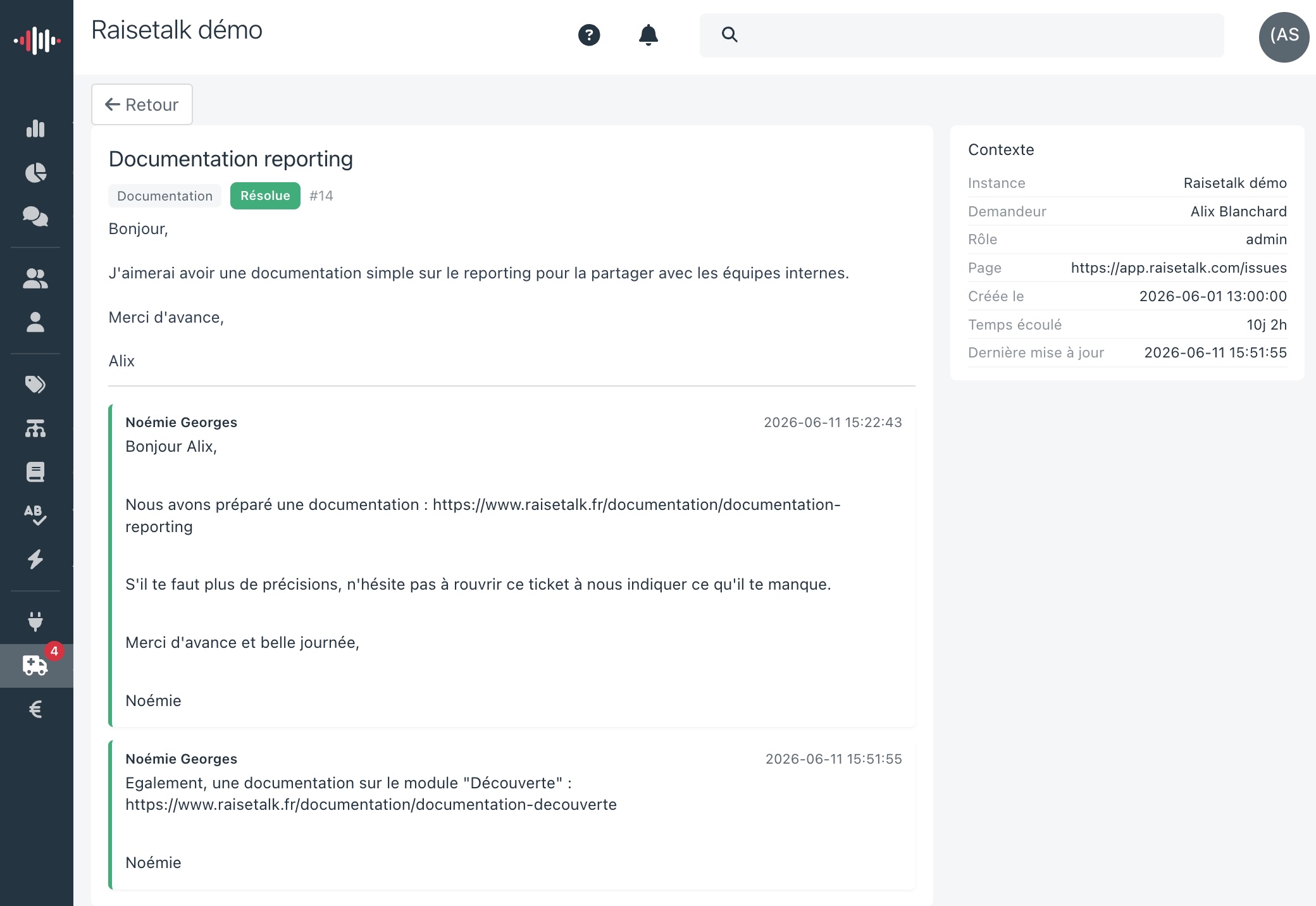
Each request carries its own discussion thread: the team answers you directly in the application, and you can reply in the same place, with formatting and attachments if needed.
You are notified by email at every step: team reply, status change. The email includes the content of the reply; just open the request to continue the exchange.
Reopening a request
The Resolved and Rejected statuses close the request. If the problem comes back or the answer does not suit you, you can reopen it in one click: it goes back to In progress and the team is notified.
A simple comment does not reopen the request: you can therefore thank the team on a resolved request without restarting its handling.
Who sees what
- Each user sees the requests they created, and only those.
- Administrators have a read-only overview of all the requests of their organisation (
view_issuesright, see Roles and rights): handy to keep track of what the teams report. - Only the Raisetalk support team handles the requests: statuses and priorities are theirs to manage.